

The strongest fix for a weak 4G connection may be moving your modem, not changing its Wi-Fi settings. To boost a 4G wireless broadband signal, place the modem where it receives better mobile reception, reduce obstacles around it and, if needed, use an external antenna compatible with the modem. A mobile signal booster works differently: it receives mobile signal and retransmits it to improve coverage in an area.
It’s frustrating when a connection drops or slows, especially when the modem’s location is limited by power outlets or the building layout. Even small placement changes can affect reception, so first find where the mobile signal is strongest.
This guide explains how to test modem placement, reduce barriers and understand when an external antenna or signal booster may help. You’ll also learn what to consider for buildings, worksites and vehicles, and how to approach signal improvement legally in Australia.
Key Takeaways
- Test different modem locations to find where mobile reception is strongest before changing equipment.
- Match an external antenna to your modem’s ports and connection needs for a better chance of improving reception.
- Understand how a mobile signal booster receives and retransmits signal, and when it may suit a building, worksite or vehicle.
- Reduce obstructions by keeping equipment clear of walls, metal objects and other signal barriers where practical.
- In Australia, use a compliant booster and consider how antenna placement and cabling affect the installation.
Coverage solutions for buildings, worksites and vehicles
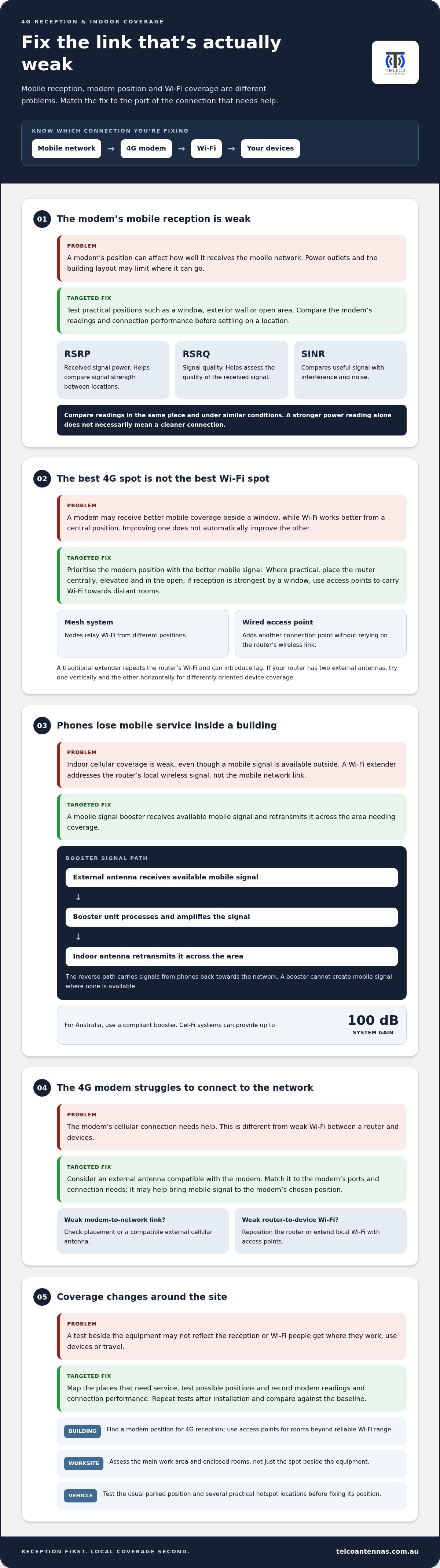
Start by separating mobile reception from Wi-Fi coverage: a better 4G signal at the modem doesn’t automatically improve Wi-Fi in every room. RSRP shows received signal power, RSRQ indicates signal quality, and SINR compares useful signal with interference and noise.
-
Assess mobile coverage and commission the system
Map reception in the places where the modem, workstations and users need service, then test possible positions before securing equipment. At a worksite, include the main work area and enclosed rooms. In a vehicle, test the usual parked position and the area where you intend to operate. Record the modem’s readings and connection performance at each point. After installation, repeat the tests to see whether the setup improves coverage where people use the network.
-
Check RSRP, RSRQ and SINR readings
Open your modem’s network-status page or diagnostic app and note its RSRP, RSRQ and SINR readings. RSRP helps compare received 4G signal strength between locations, while RSRQ and SINR provide clues about quality and interference. Test in the same place and under similar conditions when comparing readings; a stronger power reading alone may not mean a cleaner connection. If the modem hides these details, check its manual for diagnostic or field-test options.
- Place the router centrally, elevated and in the open when its mobile reception allows. A central position helps Wi-Fi reach devices across the building, while elevation and fewer nearby obstructions can improve its path through rooms. If the 4G signal is strongest beside a window, prioritise reception there, then use access points to carry Wi-Fi towards distant rooms. The best position balances mobile signal quality with the areas requiring local coverage.
- Extend Wi-Fi with a mesh system or wired access points when walls or distance create dead spots. Mesh nodes relay Wi-Fi from different positions; a wired access point adds another connection point without relying on the router’s wireless link. A traditional extender repeats the router’s Wi-Fi and can introduce lag. For latency-sensitive applications like competitive driving rigs explored at apevie.com, choosing a direct Ethernet link or dedicated access point avoids frustrating dropouts. If your router has two external antennas, try positioning one vertically and the other horizontally to provide differently oriented coverage for devices.
- Choose the right equipment for the coverage problem. A mobile signal booster improves cellular coverage in its service area; it is not the same as a Wi-Fi extender, which redistributes the router’s local wireless signal. Cel-Fi systems can provide up to 100 dB of system gain. An external antenna may help a fixed modem receive mobile signal, while separate access points distribute the connection indoors.
- Match the setup to the site. In a large building, use a suitable modem location for 4G reception and access points for rooms beyond reliable Wi-Fi range. At a worksite, assess signal around the operating area rather than only beside the equipment. In a vehicle, small position changes can alter reception considerably, so test the hotspot in several practical locations before fixing its position. Commission the final arrangement against the recorded baseline.
What is a Mobile Signal Booster?
- Identify whether weak internet comes from mobile reception or indoor Wi-Fi before choosing equipment. A 4G modem receives data from the mobile network, then shares that connection with devices over Wi-Fi. A mobile signal booster addresses the cellular link between a mobile network and phones or compatible equipment. It doesn’t replace the modem or directly extend its Wi-Fi coverage, so first note where the connection drops.
- Understand the signal path before installing a booster. An external antenna receives an available mobile signal and sends it to the booster unit. The unit processes and amplifies the signal, then an indoor antenna retransmits it across the area needing coverage. The reverse path carries signals from phones back towards the network. A booster can improve usable coverage where an outdoor signal reaches the antenna, but it cannot create a mobile signal where none is available.
- Test router placement separately from booster placement. Move a 4G modem to locations with different reception, such as a window, an exterior wall or an open area, then compare its signal readings and connection performance. A modem may receive better mobile coverage near a window, while its Wi-Fi serves devices more effectively from a central position. If those locations differ, an external antenna can help bring the mobile signal to the modem’s chosen position.
- Separate fixed-line broadband from mobile broadband when diagnosing slow internet. Fixed-line service reaches the premises through a wired connection; a 4G modem uses a SIM and connects to a nearby mobile network. A booster may help the mobile link, but it won’t increase the capacity of a fixed-line service. Likewise, an external cellular antenna won’t improve Wi-Fi between a router and devices if walls or distance are causing the local coverage problem.
- Choose the equipment around the actual link that needs improvement. If phones lose service inside a building despite usable outdoor reception, a compliant mobile booster can retransmit that cellular signal indoors. If the 4G modem alone struggles, a compatible external antenna can improve its connection to the network. If phones connect to the modem but Wi-Fi is weak in another room, reposition the router or add Wi-Fi access points instead.
Modem placement when 4G/5G reception limits options
Choose the modem position around mobile reception first, then improve Wi-Fi coverage separately. To boost 4G wireless broadband signal reception, compare readings in practical locations before changing equipment.
-
Choose an external 4G antenna
Check your modem’s antenna ports and supported frequency bands before selecting an external antenna. A MIMO antenna can suit a compatible router with matching antenna connections. To boost 4G wireless broadband signal reception, position the antenna where the modem receives a stronger signal, then compare readings. Check that connectors fit and avoid assuming an antenna will work with every modem.
-
Improve 4G broadband signal strength at home
Compare reception near a window, beside an exterior wall and in the modem’s usual position. Keep the location that gives the modem the stronger mobile connection, even if it is not ideal for Wi-Fi. If laptops or other devices then have poor Wi-Fi, add an access point rather than moving the modem away from its better reception point.
- Balance mobile signal strength, Wi-Fi reach and available power outlets when choosing a permanent location. A window may improve the modem’s path to a mobile tower, but a central position may serve more rooms. Typical indoor Wi-Fi range is 30 metres, although walls and floors affect coverage. If power outlets restrict placement, test nearby positions and compare the modem’s readings before settling on one.
- Measure internet speeds before and after changing the setup. Use the same device and location for each test, and compare Wi-Fi results with an Ethernet connection if available. This helps distinguish a weak mobile connection from a local Wi-Fi limitation. If performance drops, restart the modem. Install firmware updates through its settings when available.
- Check the modem and device standards before planning an upgrade. Wi-Fi uses the IEEE 802.11 family, and a device more than 5 years old may support older Wi-Fi technology. A router supporting Wi-Fi 6 or newer won’t make an older laptop use newer standards. The 2.4 GHz band reaches farther, while 5 GHz offers faster speeds over a shorter range.
- Change one setting or position at a time, then record the result. If moving the modem improves reception, keep the better mobile signal and address remaining Wi-Fi dead spots separately. If the modem must stay near a power outlet, an external antenna can bring reception to that location. Comparing changes step by step helps show which adjustment improves the connection.
ACMA compliance and legal booster use in Australia
In Australia, treat a mobile booster as radio-transmitting equipment, not a Wi-Fi accessory. Use the steps below to assess whether a booster suits your connection and ensure the installation uses compliant equipment.
- Check that the booster is intended for use in Australia and complies with applicable requirements. The Australian Communications and Media Authority (ACMA) oversees radiocommunications equipment and compliance. A claim that a device boosts signal is not enough: check its documentation, intended mobile-network use and operating instructions before installing it. Avoid unlabelled equipment or units with unclear origins and specifications.
- Match the booster to the mobile service and frequencies used at your location. Australian mobile networks operate across different frequency bands, and equipment designed for another market may not support the local bands you need. Check the device specifications against the network and signal available at the site. A mismatch can prevent the booster from improving the intended connection, even if its components appear compatible.
- Use the supplied installation configuration and follow the equipment instructions. A booster typically receives an outdoor signal and retransmits it through an indoor antenna, so antenna separation and placement affect how the system operates. Don’t substitute components, alter settings or position antennas against the manufacturer’s directions. Incorrect setup can affect performance and may create interference instead of improving coverage.
- Keep the intended coverage area clear and consider nearby radio equipment before switching the system on. Baby monitors, wireless devices and other appliances can use radio frequencies, though their operating bands vary. Don’t assume they share the booster’s frequency or that moving one device will resolve interference. If the booster behaves unexpectedly, switch it off and review its instructions and installation arrangement.
- Separate mobile reception from Wi-Fi bandwidth when diagnosing a slow connection. A booster improves mobile coverage, not the capacity of your internet plan or the Wi-Fi link between a router and laptops. For example, if a phone has a stable mobile signal but a laptop has weak Wi-Fi, moving a booster elsewhere won’t fix the problem. Test the connection at the modem and over Wi-Fi separately.
- During commissioning, record system behaviour, including signal readings and the areas served. Compare the connection before and after the booster operates, then check that nearby phones and other radio equipment work normally. If performance worsens or unexpected interference appears, stop using the equipment while you review the setup. These checks can help distinguish a placement issue from a compatibility or compliance concern.
Avoiding walls, metal objects and other signal barriers
Identify whether the weak link is the mobile connection or the Wi-Fi path to your device. Walls, floors and ceilings reduce Wi-Fi signal, while large metal objects and liquids can weaken it further.
- Trace the route between your router and the devices losing coverage. A tablet in a room behind several walls may receive weaker Wi-Fi than a laptop nearby, even if both use the same network. Move the device into the router’s room and compare performance. If the connection improves there, obstructions or distance are likely affecting Wi-Fi rather than the incoming 4G signal.
- Move the router away from dense barriers and large metal objects. Avoid cupboards, enclosed cabinets, metal shelving and positions behind appliances, as these can obstruct or absorb radio energy. Heavy infrastructure such as sheet-metal ductwork and utility units can significantly dampen wireless coverage; for homeowners reviewing major climate systems around the house, Air Conditioner Lab offers helpful guidance and equipment reviews. Liquids also weaken radio signals, so don’t place the router behind a large aquarium or water tank. Try an open position with fewer barriers, then compare the connection on the same device.
- Keep the router clear of appliances that may interfere with Wi-Fi. A microwave oven can affect nearby wireless connections while operating, so avoid placing the router directly beside it. If a tablet loses its internet connection while you cook, test it farther from the microwave and compare performance when the appliance is off. This helps distinguish local interference from weak mobile reception.
- Choose a Wi-Fi frequency based on distance and obstruction. The 2.4 GHz band generally reaches farther, while 5 GHz can provide faster speeds over a shorter range. The 6 GHz band is described as the fastest, with a range similar to 5 GHz. If a device drops connection in a distant room, try 2.4 GHz; for a nearby device, test a higher-frequency band.
- Check whether your router switches bands automatically. Band steering can move a device from 5 GHz to 2.4 GHz when it leaves 5 GHz range, but device and router behaviour affects the result. If a laptop stays on a weak connection, compare its performance on each available band. A different frequency may improve the local Wi-Fi link without changing 4G reception.
- Reposition the router and retest before adding equipment. Raise it above floor level, leave space around its antennas and keep it out of enclosed spaces. Change one factor at a time, such as moving it away from a wall, then test the same device and location again. For help planning a signal setup, explore signal improvement options.
Telco Antennas: Cel-Fi GO Mobile Signal Boosters
Telco Antennas supplies Cel-Fi GO Mobile Signal Boosters for situations where usable mobile signal needs to reach more of a building, worksite or vehicle. If a 4G modem has compatible antenna connections, a MIMO antenna may be a better fit for improving its reception directly. LMR-400 coaxial cables are another component in antenna setups, while point-to-point wireless bridges address links between separate locations.
First identify whether the problem is weak mobile reception, limited Wi-Fi coverage or a link between sites. This distinction helps you choose equipment that suits the issue instead of treating every connection problem as a reason to install a booster.
For equipment suited to your signal setup, contact Telco Antennas or visit telcoantennas.com.au.
Plan your next signal improvement
The next step is to turn your observations into an installation plan. Note where the connection is weakest, which devices need reliable access and whether the problem is mobile reception or indoor Wi-Fi. These details help define the equipment and antenna placement for your site, rather than leaving you to guess.
If you’re planning to boost a 4G wireless broadband signal, consider how the modem, external antenna and cabling will work together in the chosen location. A setup that suits a fixed building may differ from one intended for a worksite or vehicle. Matching the configuration to the environment is central to a practical result.
Telco Antennas can help you consider the appropriate mobile signal equipment for your requirements. Contact Telco Antennas for advice to discuss your signal setup and next steps. A measured approach can make your connection decisions clearer and help you move forward with confidence.
Frequently Asked Questions
How do I find the best location and direction for a 4G modem or router?
Use the modem’s signal readings to compare locations and antenna directions, then keep the position with the best connection. Test one change at a time: rotate the modem, adjust an external antenna or move equipment elsewhere in the room. Record readings and run speed tests under similar conditions. If you know the tower’s direction, use it as a starting point, then confirm performance with tests rather than relying on alignment alone.
Are mobile phone signal boosters legal in Australia, and what ACMA rules apply?
Use a booster designed for Australia and compliant with applicable ACMA requirements. A signal booster transmits radio signals, so it must suit its intended network and be installed according to its instructions. Avoid importing or operating equipment without clear compliance information, even if it appears to match your phone or carrier. Check the device documentation and ACMA’s current guidance before use, particularly if the equipment could affect mobile network operation.
What causes weak 4G signal indoors, and how can walls, windows or interference be addressed?
Building materials, distance from a mobile site and local interference can all weaken indoor reception. Concrete or metal-coated glazing can make it harder for an outdoor signal to reach a modem. Test different rooms and window positions to find where reception improves. Keep the modem away from metal furniture and appliances, and compare readings with nearby electronics switched off. If the modem receives a signal but devices struggle indoors, investigate Wi-Fi coverage separately.
What are the risks of cheap or unapproved 4G signal boosters?
A low-cost or unapproved booster can be incompatible with Australian network frequencies, perform poorly or cause radio interference. A device that amplifies the wrong signal may not improve your connection, and interference can affect nearby network users. Before buying, check its Australian compliance information, supported frequency bands and installation instructions. Don’t rely on claims such as “universal” or “high gain” without matching the specifications to your network and intended coverage area.
How much do 4G antennas, routers and signal boosters cost in Australia?
Prices vary depending on the hardware quality and whether you require a simple antenna or a complete networking setup. Basic external 4G antennas generally range from $100 to $300, while high-performance directional kits or MIMO arrays can cost between $300 and $600. Quality 4G routers typically start around $200 and can exceed $800 for enterprise-grade units. Fully compliant cellular repeaters and boosters represent a larger investment, often ranging from $500 to over $1,500 depending on coverage requirements and carrier approvals available through suppliers like Telco Antennas.


