
A flashing red light is a symptom to investigate, not a universal fault code. If your Cel-Fi repeater isn’t improving mobile coverage, this cel-fi repeater flashing red error light troubleshooting guide starts with a practical first step: identify the exact model and check what its indicator means in the model’s current documentation or the Cel-Fi WAVE app. The same light can indicate different conditions across models, so guessing at a fix may waste time or disrupt a working setup.
Antenna, cable and mobile-signal issues can produce similar symptoms, so work through the checks in order rather than assuming the repeater has failed. Start with the power supply, visible connections and status messages. Then compare coverage and inspect accessible parts of the antenna path. Record what you observe before changing anything, so you can make a focused next decision if the red light persists.
Key Takeaways
- A flashing red indicator is a symptom, not a diagnosis. Its meaning depends on the Cel-Fi model and operating state.
- Start with the model-specific status information, power supply and recent setup changes before moving equipment.
- Visible antenna and coaxial cable condition, coverage patterns and carrier conditions can help narrow down the cause.
- This cel-fi repeater flashing red error light troubleshooting guide separates safe observations from checks that require model-specific instructions.
- If the fault persists, record the model, light pattern, messages, affected locations and checks completed to support a focused technical discussion.
Cel-Fi repeater flashing red: what the indicator can, and cannot, tell you
A red flash can be concerning, especially when mobile coverage hasn’t improved, but the light alone doesn’t identify the cause. Treat it as a prompt to investigate, not proof that the repeater has failed. Its meaning may depend on the exact Cel-Fi model, which indicator is lit and when the light appears during operation.
A status indicator is a visible signal from the device, not confirmation of a hardware failure or its cause. A cellular repeater uses components such as antennas and signal paths to improve mobile reception. The cellular repeater overview provides background on how these systems operate. To interpret a device’s light, use the model’s documentation alongside your observations.
Before changing anything, record the model name, the light’s colour and whether it is solid or flashing. Note the flash pattern, when it begins after startup and any message shown in the Cel-Fi WAVE app, if your device supports it. These details give you a reliable starting point for this cel-fi repeater flashing red error light troubleshooting guide.
Identify the Cel-Fi model before interpreting its light
Look for the model name on the unit’s external label or casing. Depending on the installation, the label may be on a side, rear or underside. Use a torch or phone camera rather than moving a mounted device if access is awkward. If you can’t read the label, check the original paperwork or installation records.
GO models and other Cel-Fi devices may display status differently. Match the exact model and indicator pattern to its current documentation before drawing conclusions. Don’t assume that instructions for another model apply to yours.
Separate a red indicator from a confirmed fault
Describe what you can observe without assigning a cause. Is the light solid or flashing? Does it appear immediately, after the device has been running, or during startup? Does the pattern stay consistent, and does the app show a message? Record any wording exactly as displayed.
Timing and pattern help focus later checks, but they aren’t a diagnosis on their own. A change after startup is useful information to record, not proof that the unit is defective. Check the exact model’s guidance and avoid relying on a universal red-light code.
- Write down the model name and where you found it.
- Describe the colour, whether it flashes or stays solid, and when it appears.
- Save any app message exactly as displayed, if available.
Keep the unit in its existing configuration while gathering these observations. That preserves useful context and reduces the chance of introducing another variable before you know what the indicator means.
Check power, status messages and recent changes before moving equipment
Before shifting an antenna or altering the setup, note what the repeater is doing in its current position. Check the normal status display, whether the unit appears powered, whether the red indicator changes after startup and whether coverage has changed. These observations help you compare a possible power interruption or setup change with the current symptoms. Keep the enclosure closed; internal components aren’t part of a safe visual check.
Check the power supply and visible connections
Look over the external power supply, plug and accessible cable connections. Check for a visibly loose plug, crushed or frayed cable, moisture exposure, unusual heat or a burning smell. Don’t open the unit or disconnect components while they’re energised. If a connection appears loose, follow the model’s instructions for safely powering down before touching it. Stop if anything looks damaged or unsafe, and seek qualified technical assistance instead of testing it further.
Record status messages and recent setup changes
If your model provides an app or controller message, write down the wording exactly and note when it appeared. Not every Cel-Fi device has the same diagnostic screens. Also record recent changes to the antenna, coaxial cable, power supply, configuration or equipment location. A fault appearing after a change is a useful clue, but it doesn’t establish the cause by itself.
Avoid factory resets or undocumented button sequences during initial diagnosis. They can change the configuration or remove useful context, making it harder to compare the original state with what happens next. If the model’s manual recommends a restart, first record your observations, then follow that model-specific procedure rather than improvising.
Before restarting or changing settings, note:
- The repeater model and its current position.
- Whether the red light is solid or flashing, and when it appears.
- The normal status display and any app or controller message.
- Visible power, plug or cable issues, without disturbing energised connections.
- Recent changes to equipment, configuration or mobile coverage.
Keep these notes with the device’s model-specific documentation. Comparing what you observe with the correct instructions helps prevent a general troubleshooting tip from being mistaken for a procedure for your particular model.
If the basic checks point towards the antenna or coaxial cabling, Telco Antennas supplies Cel-Fi GO boosters, antennas and RF components. Preserve details of the original setup before making changes, so the next step is based on observations rather than guesswork.
Isolate antenna, coaxial cable and mobile-signal causes
If the repeater has power but coverage remains poor, compare observations across the system before changing its position or connections. An antenna-path problem may affect the signal reaching the repeater, while weak carrier service or a local coverage change can affect mobile performance independently of the hardware. A coaxial connection fault can reduce performance, but it doesn’t prove that the repeater itself is defective.
RF diagnosis depends on the whole antenna path, not one indicator. The antenna, its position, connectors and coaxial cable all contribute to the signal path. Check only what is safely accessible, and compare observations instead of treating one symptom as conclusive.
Inspect antenna and coaxial cable connections
Visually inspect accessible connectors for looseness, corrosion, moisture or strain. Don’t force or rotate a connector, or disconnect it while equipment is energised. Follow the model’s instructions before handling any connection. Look along the coaxial cable for crushing, sharp bends or visible damage, and note any recent changes to cable routing or antenna placement. Telco Antennas’ Cel-Fi GO professional guide provides further context on booster systems.
Distinguish equipment symptoms from network conditions
Where practical, compare mobile service in the same location with service away from the area covered by the repeater. Record whether the issue affects one phone, a particular room or area, or all users. If possible, compare devices using the same carrier, because different carriers or devices may receive different service in the same place. A temporary carrier issue or limited coverage can resemble an equipment fault. These comparisons help narrow down possibilities but don’t establish a cause on their own.
The CISA guide to Radio Frequency Interference (RFI) troubleshooting offers broader background on interference and its investigation. It isn’t a Cel-Fi-specific fault-code guide, so use it for general context rather than interpreting the repeater’s indicator.
Use this comparison to choose a safe next check:
- Observed symptom: The unit appears unpowered. Possible area: Power supply or accessible plug. Safe next check: Look for visible damage or a loose plug without opening the enclosure or handling energised connections.
- Observed symptom: Coverage is weaker across the served area. Possible area: Antenna path, cable condition or carrier service. Safe next check: Note visible cable or connector concerns and compare mobile service in the same location.
- Observed symptom: One device has poor service while others work. Possible area: That phone or its carrier connection. Safe next check: If available, compare another device using the same carrier in the same place.
- Observed symptom: Service changes after antenna or cable work. Possible area: The altered part of the RF path. Safe next check: Record what changed and when. Don’t reposition or reconnect components until you’ve checked the exact model’s instructions.
This comparison helps narrow the next step in the cel-fi repeater flashing red error light troubleshooting guide without mistaking a cable or coverage symptom for confirmed repeater failure. If you find visible damage, moisture or a connection that needs technical handling, stop and seek qualified assistance.
Troubleshoot a flashing red Cel-Fi repeater in a safe sequence
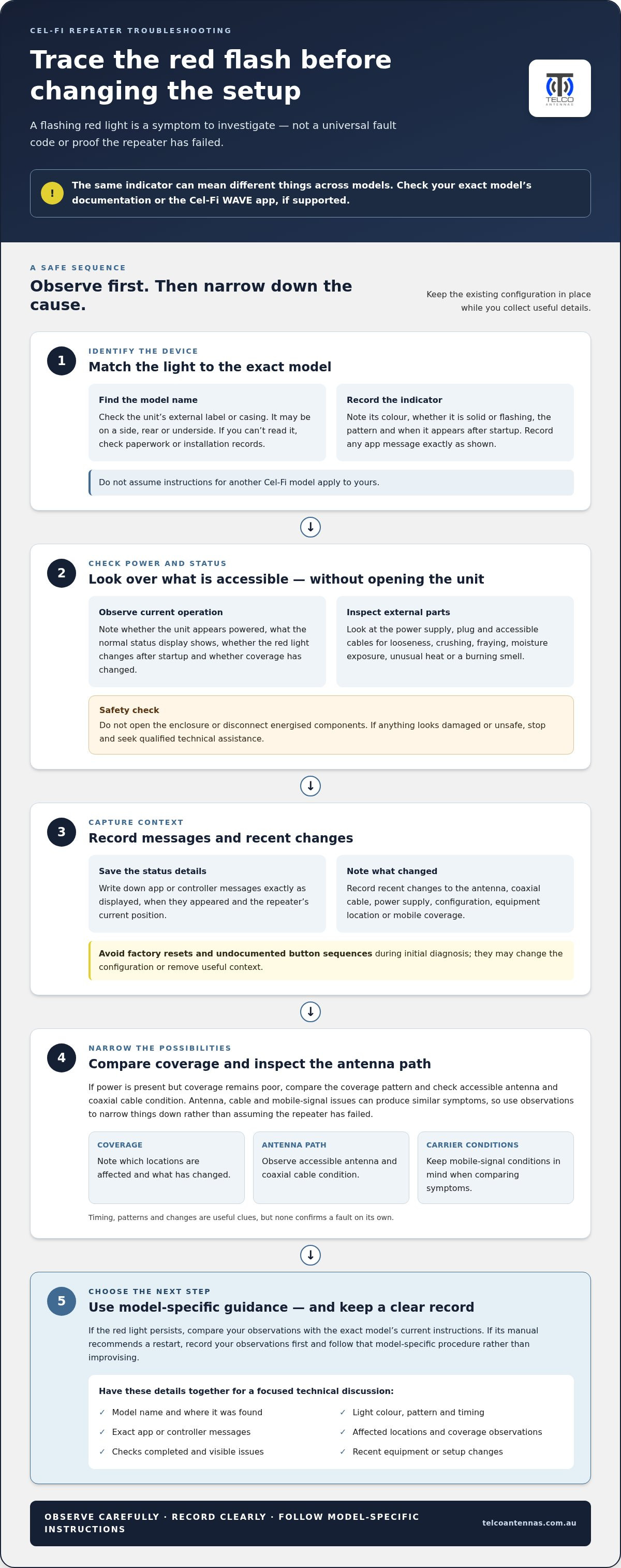
Once you’ve recorded the indicator and status details, work through checks in a fixed order. The aim is to narrow down the likely area without disturbing a functioning installation or adding new variables. This cel-fi repeater flashing red error light troubleshooting guide uses a conservative sequence: observe first, inspect externally, then follow instructions for the exact model.
Follow a controlled diagnostic sequence
- Confirm the model and indicator. Use the unit’s label and record whether the light is solid or flashing, when it appears and any displayed message. Check the model-specific documentation for the meaning of that pattern.
- Capture the current state. Note whether the repeater appears powered, what coverage is affected and any recent setup changes. This gives you a baseline to compare with the status after a documented check.
- Inspect externally. Look for visible damage to the power supply, plugs, antenna connections and accessible coaxial cable. Don’t open the enclosure or handle connections while energised. If anything looks damaged or unsafe, stop rather than testing further.
- Consult the model’s instructions. Use the documented troubleshooting steps for that exact unit. If the manual specifies a restart or diagnostic procedure, follow it as written and observe the status afterwards. Restart only when the model’s instructions support it.
- Change one thing at a time. If the documentation calls for a specific adjustment, record the original state, make only that change and note the result. This helps show whether the symptom changed without confusing the diagnosis.
Know when to stop testing
Stop if the unit, power supply, cables or connectors show signs of damage, unusual heat or moisture. Don’t bypass a protection feature, open the repeater, repeatedly reset it or swap antenna connections by trial and error. Those actions can create new faults, obscure the original symptoms or require technical knowledge. For antenna context, the MIMO antenna technical guide explains how antenna configuration relates to signal performance.
If the documented steps don’t resolve the alert, leave the setup unchanged and keep your observations together: model, light pattern, messages, affected area and checks completed. Telco Antennas provides RF engineering services, including RF site surveys, to assess signal conditions and the wider RF environment. For Cel-Fi GO boosters and related hardware, view Telco Antennas’ range.
When the red error light persists: prepare the right details for technical help
If the indicator remains red after external checks and the instructions for your exact model, further trial and error is unlikely to clarify the fault. Stop and seek qualified technical help if you notice damage, moisture or unusual heat, or if coverage remains poor and the cause may be in the antenna path or another RF condition. A persistent alert doesn’t automatically mean the repeater has failed. A clear fault report helps focus the investigation.
Build a concise fault report
Keep the report factual and in time order. Include the exact model name from the unit’s label, when the issue first appeared and whether the light stays on, flashes continuously or changes during startup. If safe and practical, include a clear photograph of the indicator and any status message, and make sure the model label can also be read. Record the message exactly as displayed.
Describe the effect on service as specifically as possible. Note whether coverage is affected throughout the area or only in one location, and whether the issue appears to affect one device or several. Add any changes made beforehand, such as work on the antenna, coaxial cable, power supply or configuration. This timeline can help distinguish a new symptom from an unrelated change in carrier coverage.
List the checks you completed and what happened after each one. State whether you followed a documented restart procedure, whether the indicator changed afterwards and whether coverage changed. If you didn’t perform a step because it required opening the unit or handling energised connections, say so. A precise record is more useful than a list of unverified guesses.
- Model: exact name shown on the repeater label.
- Indicator: colour, solid or flashing pattern, and when it appears.
- Messages: exact wording from the display, app or controller, if available.
- Timeline: when the symptom began and any setup changes beforehand.
- Impact and checks: locations or devices affected, steps completed and the observed result.
Get help with the repeater or antenna path
When basic checks haven’t isolated the cause, the next investigation may need to consider the booster, antenna, coaxial cable and wider site conditions together. Telco Antennas supplies Cel-Fi GO mobile signal boosters, antennas and RF components, and provides RF engineering services including RF site surveys. These services support a considered investigation rather than assuming every persistent light has the same cause or resolution.
For information about Cel-Fi GO boosters and related hardware, explore Cel-Fi GO boosters and technical support. Keep your fault report handy, including the model, symptoms and checks already completed.
Turn your observations into a practical next step
A clear fault record is a stronger starting point than repeated resets or unplanned adjustments. If the cause remains uncertain, keep the system configuration unchanged and use the model details, status information and notes to guide the next step. This cel-fi repeater flashing red error light troubleshooting guide is most useful when it helps you move from guesswork to a focused investigation.
Telco Antennas supplies Cel-Fi GO boosters, MIMO antennas and LMR-400 coaxial cables for mobile signal systems. When wider site conditions need assessment, Telco Antennas also provides RF site surveys as a professional engineering service.
Explore Cel-Fi GO boosters and RF engineering services to take the next step with a clearer understanding of what your repeater is reporting.
Frequently Asked Questions
What does a flashing red light mean on a Cel-Fi repeater?
It signals a status or error condition, but its meaning depends on the repeater model and operating state. Check the exact model’s current documentation or, where supported, the Cel-Fi WAVE app. Note whether the light flashes in a repeating pattern or changes after startup. Don’t apply an error code or explanation from another model to your unit.
Can I restart my Cel-Fi repeater when its error light is flashing red?
Restart it only if the instructions for your exact model recommend that step. Before restarting, record the indicator and any displayed message so you can compare the status afterwards. Follow the documented power-down and restart procedure rather than unplugging components at random. Avoid factory resets or button sequences from general online advice, as they may change settings or complicate diagnosis.
Why is my Cel-Fi repeater showing an error even though it has power?
Power confirms only that the unit is receiving electricity. It doesn’t confirm that the antenna path, mobile signal or other operating conditions are satisfactory. A model may report an issue unrelated to its power supply, while weak carrier service or a cable-path problem can also affect performance. Check the exact model’s message or documentation, then compare service in the affected area before assuming the repeater has failed.
How do I find the model number on a Cel-Fi repeater?
Look for the product label on the outside of the unit, commonly on a side, rear or underside panel. The model name may also appear in the product paperwork or installation records. If the repeater is mounted out of reach, don’t remove it just to read the label. Take a clear photo from a safe position or check the records, then match the name to the correct manual.
Can a loose antenna cable cause a Cel-Fi repeater error light?
A loose or damaged antenna-path connection can affect signal performance and may be associated with a status alert, depending on the model. That doesn’t establish that the repeater itself is faulty. Look for visible strain, corrosion or damage without forcing the connector. If it needs handling, follow the model’s instructions for powering down first, or have a technically qualified person inspect the connection.
What should I do if the red light keeps flashing after basic checks?
If the alert remains after checks allowed by the manual, stop experimenting and prepare a concise fault report. Include the model, light pattern, any app message, when the issue began, the areas or devices affected and what you’ve already tried. This cel-fi repeater flashing red error light troubleshooting guide can help organise those observations for a focused technical discussion. Seek qualified help if damage or an unresolved antenna-path issue is suspected.
Is it safe to disconnect the antenna cables while the Cel-Fi repeater is running?
Don’t disconnect antenna cables while the repeater is running. Follow the exact model’s documented shutdown procedure before handling connections, and don’t force a connector that resists movement. Disconnecting or swapping cables without instructions can disturb the setup and make the original fault harder to assess. If you’re unsure how to power down safely, leave the connections in place and seek qualified technical guidance.


